📖 Useful Guides
Creating a channel point redeem in Streamerbot
If you are new to Streamer.bot, we encourage you to visit the official documentation pages. These are a rich resource in getting to understand how to use and configure Streamer.bot, allowing you to become more familiar and confident with the tool.
Creating the Channel Point Redeem
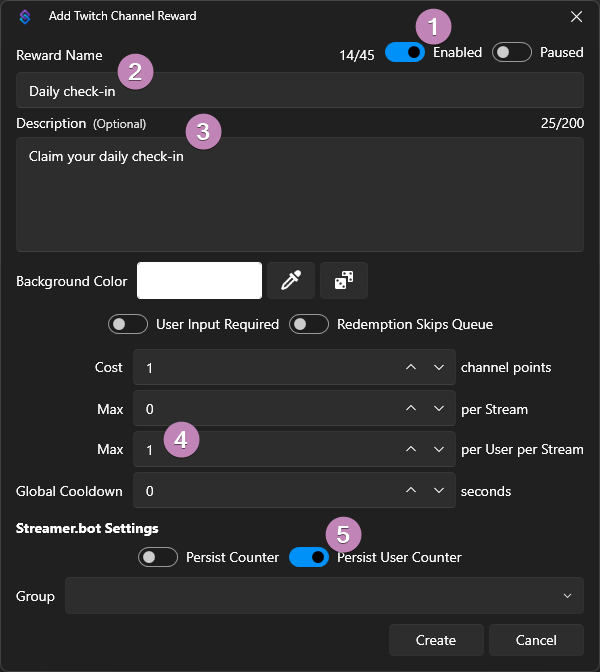
- Ensure that the channel point redeem is Enabled.
- Set the Reward Name as desired (it doesn't matter what you choose, so long as you remember it!).
- Set the Description (optional, appears in the channel point redeem on Twitch to provide further information).
- Set the Max per User per Stream limit to 1. This is what ensures that it can only be redeemed once per user.
warning
Be sure to set the Max per User, not the Max per Stream just above it. If you set max per stream, only one user will be able to claim it during that stream!
- Ensure that Persist User Counter is Enabled. This is extremely important; without this, the counter of how many times they've redeemed will not be tracked!
You can also choose to customize the channel point redeem further if you wish, including the background colour, channel point cost to redeem, etc. Once you're satisfied, click the Create button to save your changes.
Connecting the redeem to the action
Now that you've created a channel point redeem for your daily check-in, you need to connect it to the action provided for you in the starter pack.
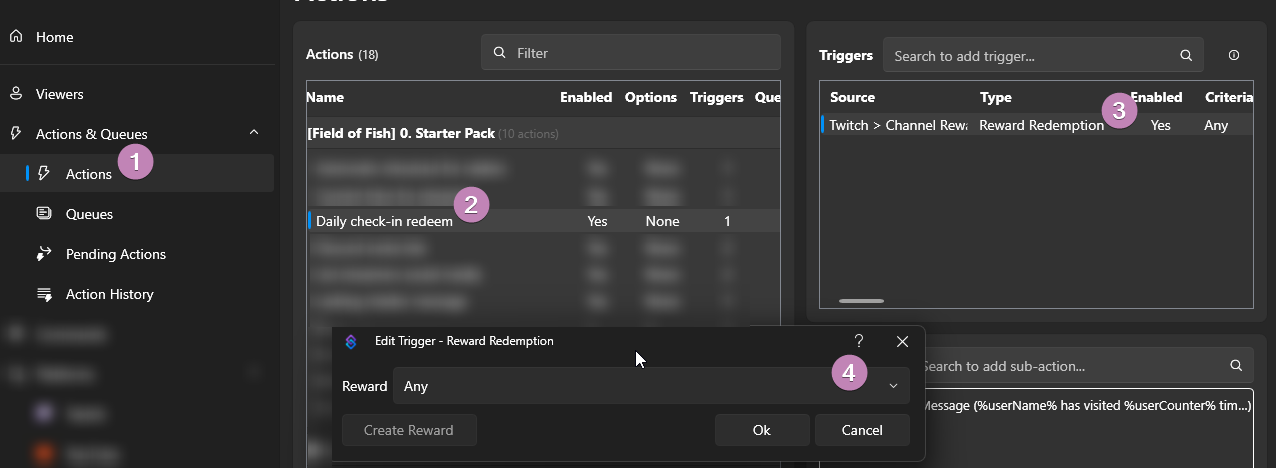
- Go to the Actions entry in the left sidebar.
- Click the Daily check-in redeem action.
- On the top-right hand side of the window, double click the Reward Redemption trigger.
- Select your new channel point redeem in the Reward dropdown.
- Click Ok when you're done to save your changes.